Qwen3.5-0.8B: A promising small AI for information extraction
GCash is a mobile payments service in the Philippines. Here, when someone sends digital money to another person, they usually show the receipt to the receiving person (or take a screenshot/download the receipt then send the image through chat) as like a proof that they’ve sent it. Now if you’re a small business that uses GCash frequently, you know it’s hard to track the transactions (no categorization, tagging, filtering, sorting), and difficult to digitally integrate with your accounting system. But here comes Qwen3.5-0.8B to the rescue. Let’s just call it Qwen throughout this article.
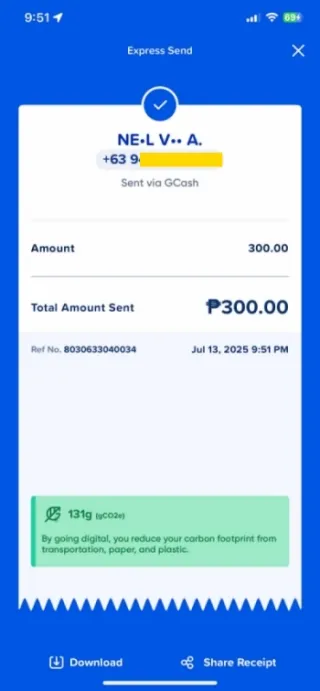
A screenshot of GCash “Express Send” receipt. This is from someone who sent money to me.
How can Qwen help?
Qwen is a vision language model, a type of AI that take image and text inputs, and generate text outputs. Very cool. And so, we can just take an image of the GCash receipt and instruct Qwen to extract the information we need. Like we can instruct it to extract the phone number, amount sent, reference number, and the transaction date and time. Then use the extracted data for your accounting system or automations.
You might be thinking right now that ChatGPT and Gemini can extract information as well. But can you use ChatGPT and Gemini without an internet? And for the privacy-conscious, are you comfortable sharing your customers’ phone numbers to ChatGPT and Gemini? Qwen can work even without an internet. Your customers’ data are safe with Qwen, since these data will stay only in your private laptop/desktop. And Qwen makes it possible that you can run your own AI in your computer. Before I teach you how to download and run Qwen, I’ll show you why I think it is promising. (Or if you don’t care about that, you can skip to the Download and Run Qwen part)
Challenging Qwen
When there’s a new vision language model, I challenge them with my own set of tests. One of these set is a collection of images of GCash “Express Send” receipts. The task is to extract information from the receipts and present the results in XML format. This involves the model’s OCR capability, following instructions, and layout awareness. I use the built-in llama.cpp UI to do the initial tests which allows me to iterate on the prompts fast, and in turn can help when I do the programmatic approach later.
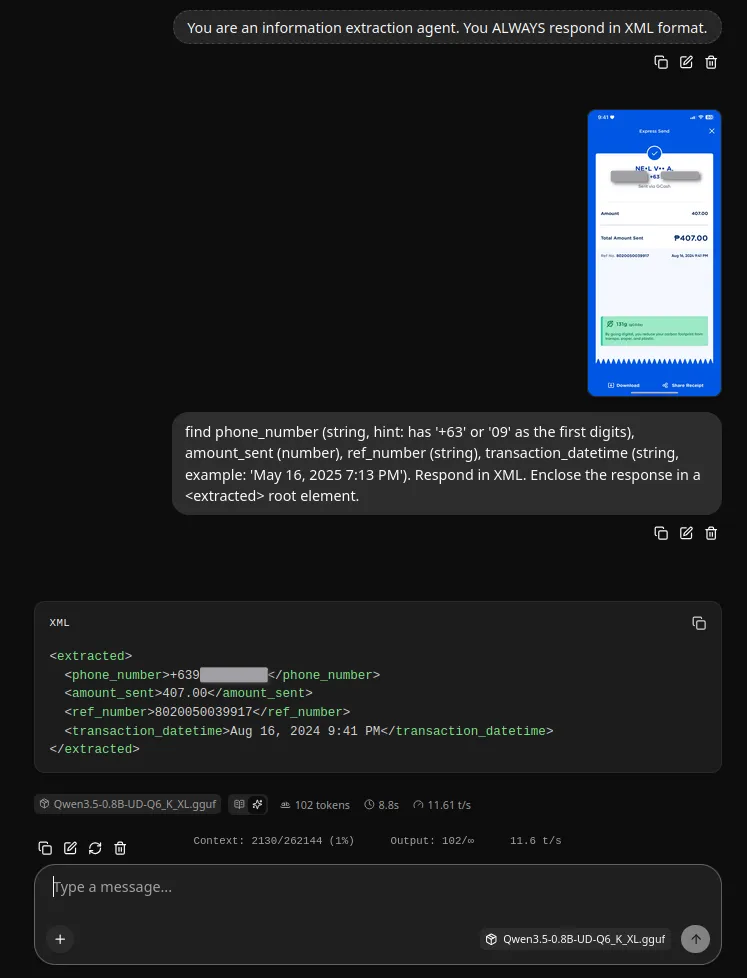
A sample test run which shows the system prompt, user prompt, and Qwen’s response.
Other vision models that I’ve tested usually cannot consistently extract the correct data. Early on, like the first 5 test runs, they hallucinate already so there’s no point for me to continue doing more runs. And to note also that these models have 3B or 4B parameters. But Qwen was different. I was using a 0.8B variant, I did not expect much from this small model. But I was 10 test runs in and the model haven’t failed yet. And the responses were fast considering I’m not using a GPU. Hmmm. I might now be part of the anecdotes that I’ve read in r/LocalLLaMA about Qwen3.5’s impressiveness. More runs using the receipts, and I also tried extracting information from images of tables. Eventually there were errors such as incorrect numeric data extracted and results format issues but overall it’s impressive indeed.
IMPORTANT! I have my own needs and level of reliability with the results of the tasks I’ve given to Qwen. You should try it with your own tasks and see if it is reliable enough for your use case.
Download and Run Qwen
You can download a pre-packaged app hosted on my Google Drive. Or for the adventurous ones who wants to set up manually, you can follow the instructions further below.
Click here to download pre-packaged Qwen
Extract the downloaded Qwen_AI.zip file. Inside the extracted Qwen_AI folder, click the app_launch_AI.bat file to run Qwen. This will automatically open your browser and you’ll see a chat app connected to Qwen. YOU DON’T NEED AN INTERNET FOR THIS CHAT APP TO WORK. VERY COOL! 😎
IMPORTANT! When starting Qwen, a command prompt will appear. Do not close this command prompt while using the chat app. Close this only after using the app.

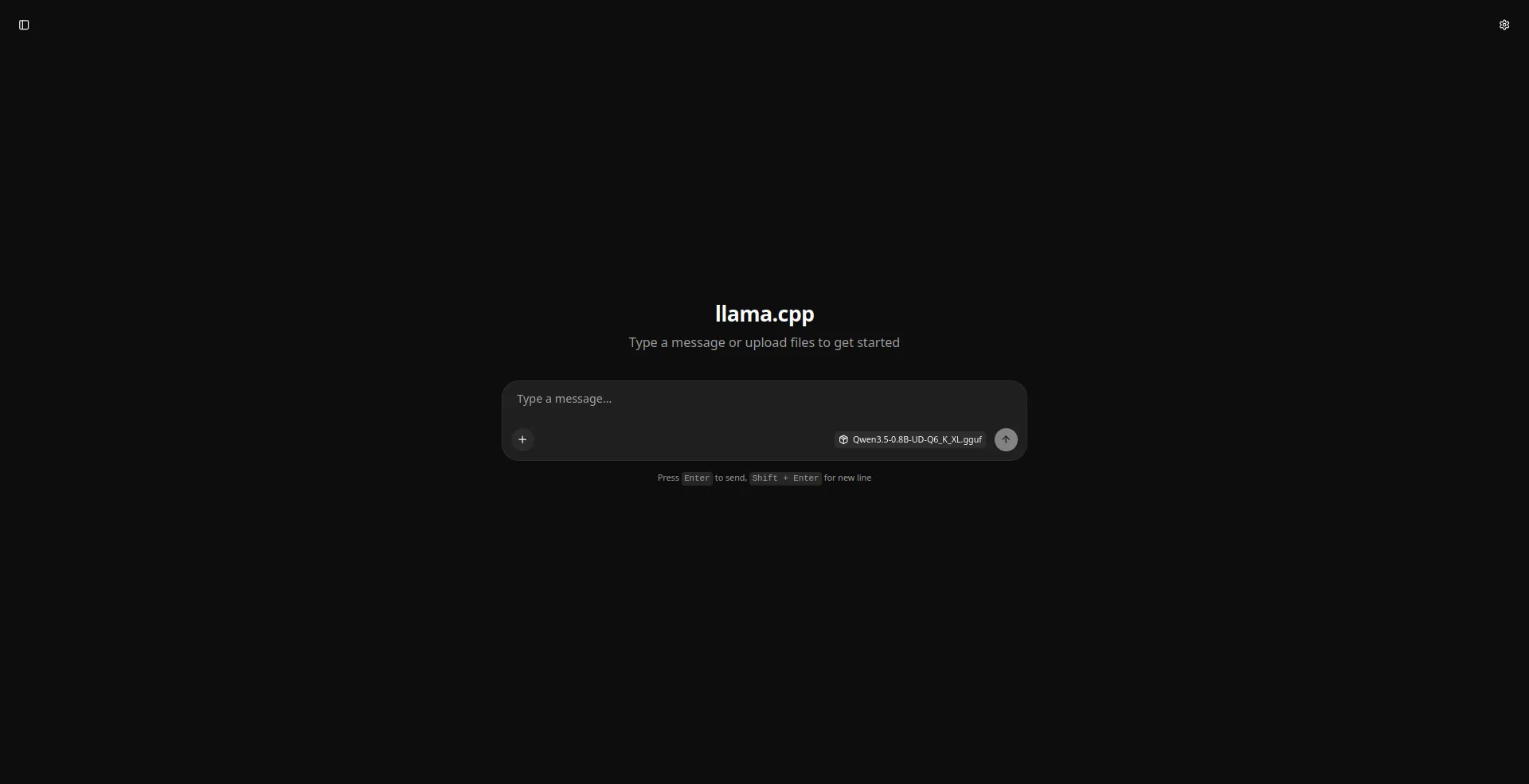
The chat app connected to Qwen.
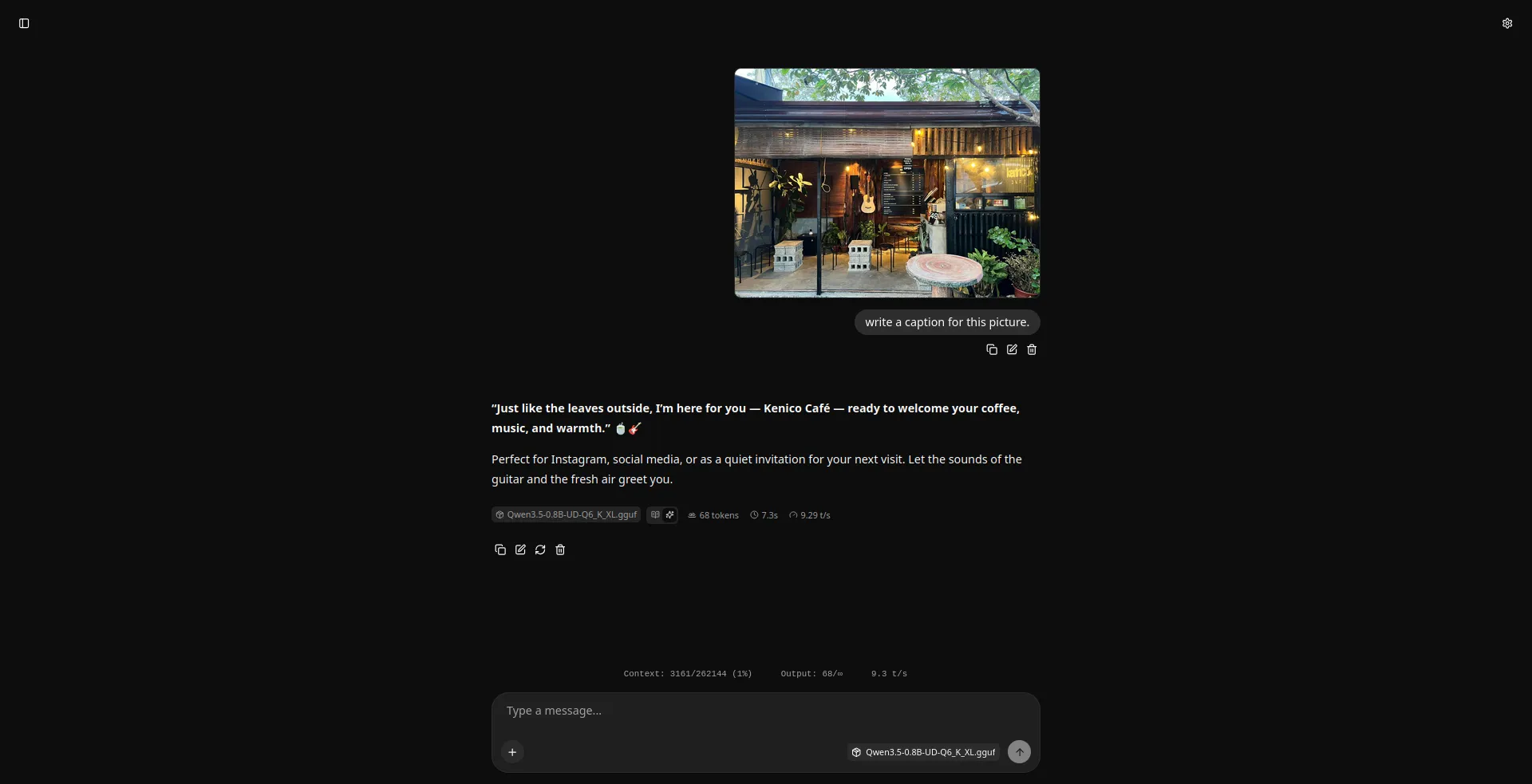
Asking Qwen to write a caption.
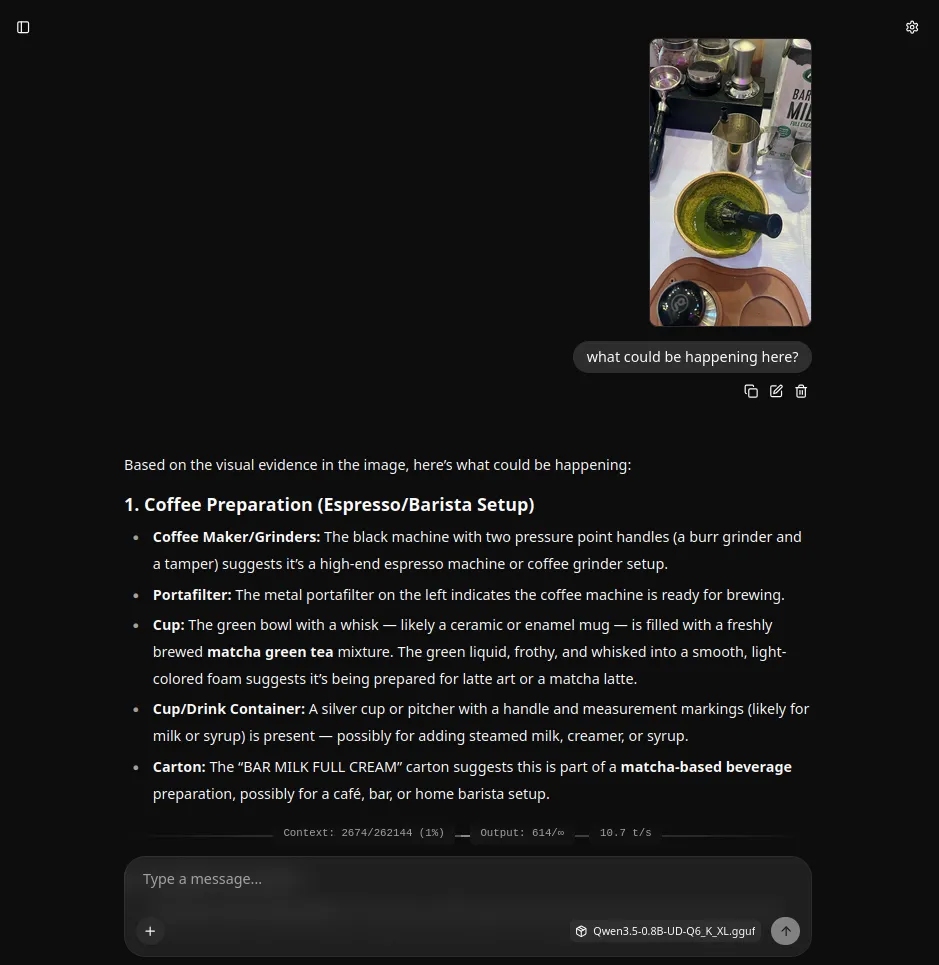
Asking Qwen about the picture.
You now have a private AI that works offline. Go chat with Qwen! It can do more than just extract information. It can write captions for images, describe them, and you can ask it about what’s happening in a picture.
For the adventurous who wants to set up manually
You need 2 things to download:
- The AI model files
- An app to interact with the AI
First, download the two AI model files from this website called Hugging Face. The main file is about 771 MB and the projector file is 205 MB in size. There are also other variants (quants as they are called) with smaller or bigger file sizes that you can choose from; the community recommends using the Q4_K variants. Quants like Q4_K, Q5_K, Q6_K, and Q8_K are expected to be of higher quality.
huggingface - Qwen3.5-0.8B main
huggingface - Qwen3.5-0.8B projector
huggingface - other quants for Qwen3.5-0.8B
Next, you need an app to interact with Qwen. Let’s use llama.cpp. If you’re using Windows, the link is below:
llama.cpp for other OS and GPU/CPU options
Extract the .zip file you downloaded. Rename the folder to “Qwen_AI”. Then transfer the Qwen main and projector files to the Qwen_AI folder.
Now download this app_launch_AI.bat script file and put it inside the Qwen_AI folder.
app_launch_AI.bat file to download
Run the app by clicking the app_launch_AI.bat. This will open a command prompt (for the local server), and your browser (for the UI). Enjoy Qwen!
Credits
This local, offline, private AI is possible thanks to the Qwen team for the model, GGML team for llama.cpp, and Unsloth AI team for the quants.